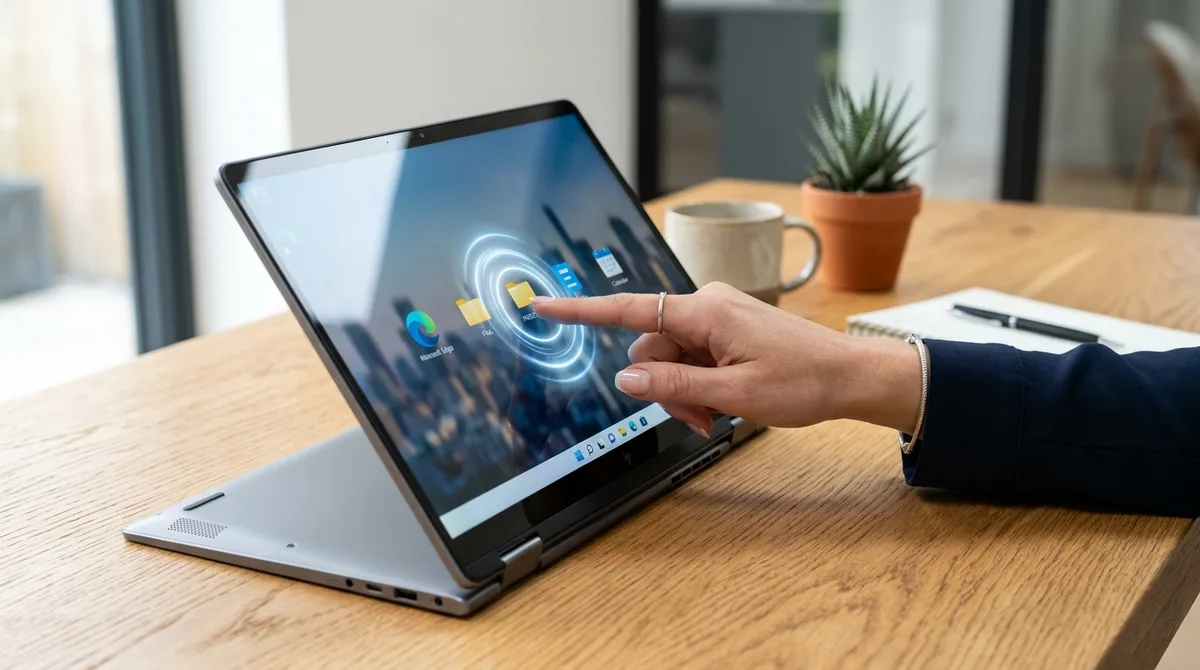
A quick clarification saves a lot of frustration here: on a Chromebook there is no on/off switch for the touch screen — it is enabled by default. If your Chromebook touch is not working, you are troubleshooting, not toggling. On a Windows laptop, the touch screen genuinely can be switched off in Device Manager. This guide covers both, starting with the fastest path for each.
Chromebook: It Is Already On — So Reset It
Since the digitizer runs automatically in ChromeOS, an unresponsive screen almost always points to a temporary glitch. A hardware reset clears it in most cases:
- Turn the Chromebook off completely.
- Press and hold Refresh (the circular arrow key) and tap the Power button.
- Release Refresh once it boots. This is the ChromeOS hard reset and it re-initializes input hardware.
If touch still fails after a reset and a ChromeOS update, the digitizer may be a hardware fault worth a warranty check — there is no software toggle left to try.
Windows Laptop: The Device Manager Toggle
Windows is where an actual enable/disable setting lives:
- Right-click the Start button and open Device Manager.
- Expand Human Interface Devices.
- Find HID-compliant touch screen. If it is disabled, right-click it and choose Enable device.
If that entry is missing entirely, the touch screen is likely disabled deeper down, in the firmware.
When the Screen Is Disabled in BIOS/UEFI
Sometimes Windows cannot "see" the touch screen because it was switched off at the hardware level — often after a big update or a fully drained battery. The path is brand-specific:
- HP (Envy, Pavilion, x360): Tap F10 at startup, go to Advanced → Built-in Device Options, and make sure Touch Screen is checked.
- Dell (Inspiron, XPS): Run the SupportAssist update scan first; the BIOS toggle (tap F2 at boot) lives under System Configuration or Display.
- Lenovo (Yoga, ThinkPad): A conflict between the Intel Serial IO controller and the I2C HID device can disable touch — look for a "Code 10" error in Device Manager.
Fixing "Code 10" and HID Driver Errors
If the touch screen shows in Device Manager with a yellow exclamation mark and a Code 10 ("a request for the HID descriptor failed"), the hardware is talking but the driver is confused. The usual culprit is the Intel Serial IO driver, which manages how the CPU communicates with the digitizer. Go to your manufacturer's support page, enter your serial number, and download the latest Chipset and Serial IO drivers. Install them, then do a cold boot — shut down, wait 30 seconds, power back on — to reset the HID chain.
If the Cursor Moves on Its Own ("Ghost Touch")
A screen that taps or scrolls by itself is usually not a settings problem. Clean the glass with a slightly damp microfiber cloth, remove any thick screen protector that could trap static, and check for a cracked digitizer. If ghost touch persists on a clean, undamaged screen, it points to hardware.
Quick Reference by Device
| Device | Primary method | If it fails |
|---|---|---|
| Chromebook | Touch is on by default | Hard reset: hold Refresh + tap Power |
| Windows laptop | Device Manager → enable HID-compliant touch screen | Update Intel Serial IO / chipset drivers |
| HP laptop | F10 BIOS → Built-in Device Options | HP Hardware Diagnostics (F2) |
| Dell laptop | SupportAssist update scan | F2 BIOS → System Configuration |
If the Screen Responds Erratically
A touch screen that taps or scrolls on its own ("ghost touch") is usually not a settings problem. Clean the glass with a slightly damp microfiber cloth, remove any thick screen protector that could trap static, and check for a cracked digitizer. If ghost touch persists on a clean, undamaged screen, it points to a hardware fault worth a warranty check.
Frequently Asked Questions
How do I turn on the touch screen on a Chromebook?
Chromebook touch screens are enabled by default — there is no on/off toggle. If touch stops working, do a hard reset by holding the Refresh key and tapping Power.
How do I enable the touch screen on a Windows laptop?
Open Device Manager, expand Human Interface Devices, right-click "HID-compliant touch screen," and choose Enable device. If it is missing, check the BIOS/UEFI firmware.
Why is my touch screen not working after a Windows update?
Updates can disable the touch driver or the firmware setting. Re-enable HID-compliant touch screen in Device Manager, then update the Intel Serial IO and chipset drivers and cold-boot the machine.