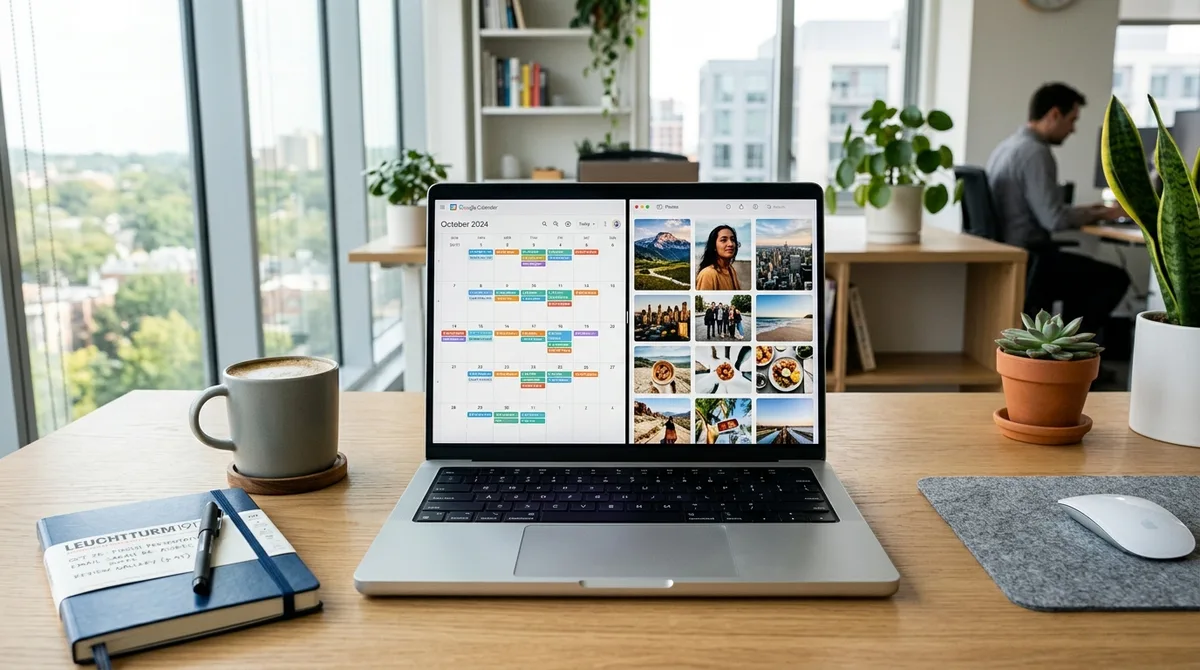
Running two windows side by side is one of the most useful things a Chromebook does, and there are three ways to trigger it. Pick whichever fits your habits.
Method 1: Drag to the Edge
Click and hold a window's title bar, then drag it hard against the left or right edge of the screen until you see a preview outline snap into place. Release, and the window fills that half. Do the same with a second window on the other side.
Method 2: The Maximize Button Trick
Hover over (do not click) the maximize/restore button in the top-right corner of a window. On most Chromebooks a small pair of arrows appears — click the left or right arrow to snap the window to that half of the screen instantly.
Method 3: The Keyboard Shortcut
The fastest option once it is muscle memory:
- Alt + [ snaps the active window to the left half.
- Alt + ] snaps it to the right half.
Snap one window left, click the other, and snap it right — done in about a second.
Adjusting the Split
Once two windows are snapped, hover over the divider between them until the cursor becomes a resize arrow, then drag to give one side more room. This is handy when you want a document wide and a reference narrow.
A Note on Low-RAM Models
Split screen is about display, but multitasking is about memory. If your Chromebook has 4 GB of RAM, running split screen with heavy Android or Linux apps can cause lag and tab reloads, because those apps run in memory-hungry virtual machines.
| RAM | Comfortable Multitasking | Best For |
|---|---|---|
| 4 GB | 5–10 tabs | Light browsing, single-window work |
| 8 GB | 10–30 tabs | Split-screen office work, video calls |
| 16 GB+ | 30–60+ tabs | Linux apps, heavy research |
If things start to lag, open the Chrome Task Manager with Search + Esc to see which window is eating resources.
Going Further: External Monitors
To split across more space, connect an external display over USB-C (DisplayPort Alt Mode) or HDMI, then go to Settings → Device → Displays and choose Extended Desktop. That treats the second screen as extra workspace so you can snap windows across both panels.
Adjusting and Exiting Split View
Once two windows are snapped, hover over the divider between them until the cursor becomes a resize arrow, then drag to give one side more room — useful when you want a document wide and a reference narrow. To exit split view, drag one window's title bar away from the edge, or maximize it.
Split Screen on a Touchscreen Chromebook
On a Chromebook in tablet mode, swipe up to open the app shelf, then drag an app to the left or right edge of the screen to snap it. Drag a second app to the other side to complete the split. The gesture is the touch equivalent of the drag-to-edge method.
Frequently Asked Questions
How do I split the screen on a Chromebook?
Drag a window's title bar to the left or right edge until an outline appears, then release. Snap a second window to the other side. You can also use Alt + [ and Alt + ], or hover the maximize button and pick a side.
Why won't my Chromebook split screen?
Some apps (especially certain Android apps) don't support resizing. Try a Chrome browser window first to confirm the feature works, then check whether the specific app allows split view.
Can I split the screen three ways on a Chromebook?
Standard snap supports two windows side by side. For more, connect an external monitor and extend the desktop to gain additional snap zones.