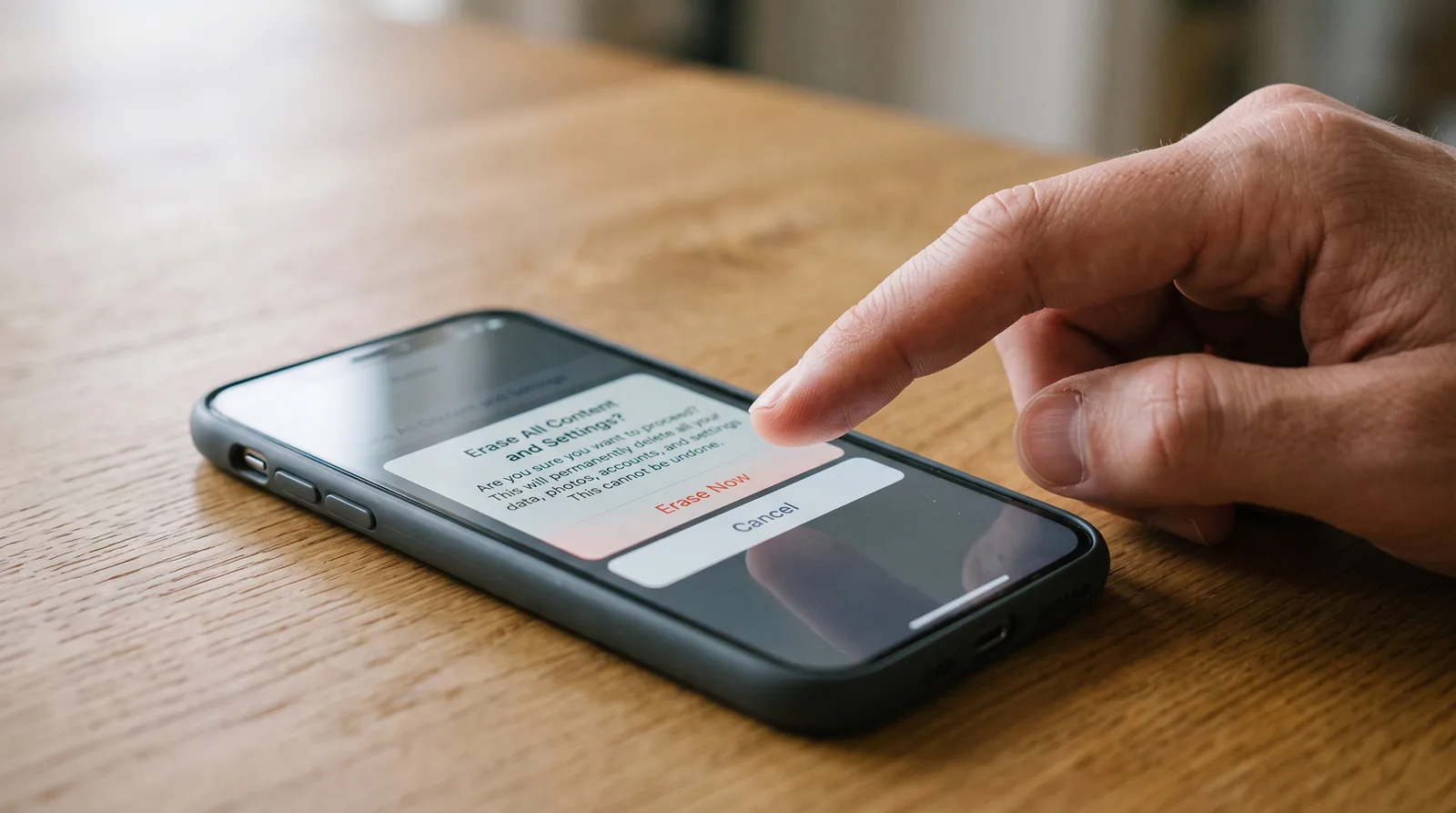
Factory resetting an iPhone takes about four taps. The reason this query gets over a hundred thousand searches a month is not that the taps are hard to find — it is that the consequences of doing it in the wrong order are severe and irreversible, and most step-by-step guides skip the part that actually matters.
The single most important sentence in this article: sign out of your Apple Account before you erase, not after. Everything else is detail.
What a Factory Reset Actually Does
Modern iPhones do not laboriously overwrite your storage. Every file is encrypted at rest with keys held in the Secure Enclave, a dedicated coprocessor isolated from the main system. "Erase All Content and Settings" destroys those keys.
The encrypted data physically remains on the NAND flash until overwritten in normal use — but without the keys it is indistinguishable from random noise. This is called cryptographic erasure, and it is why the operation completes in under a minute on a 1TB device rather than taking hours. It is also why forensic recovery of pre-reset data is not practically feasible; there is nothing to recover from.
The distinction worth understanding: a factory reset removes your data. It does not downgrade or reinstall iOS, it does not clear Activation Lock, and it does not remove the device from your Apple Account. Those are separate operations, and conflating them is the source of most reset disasters.
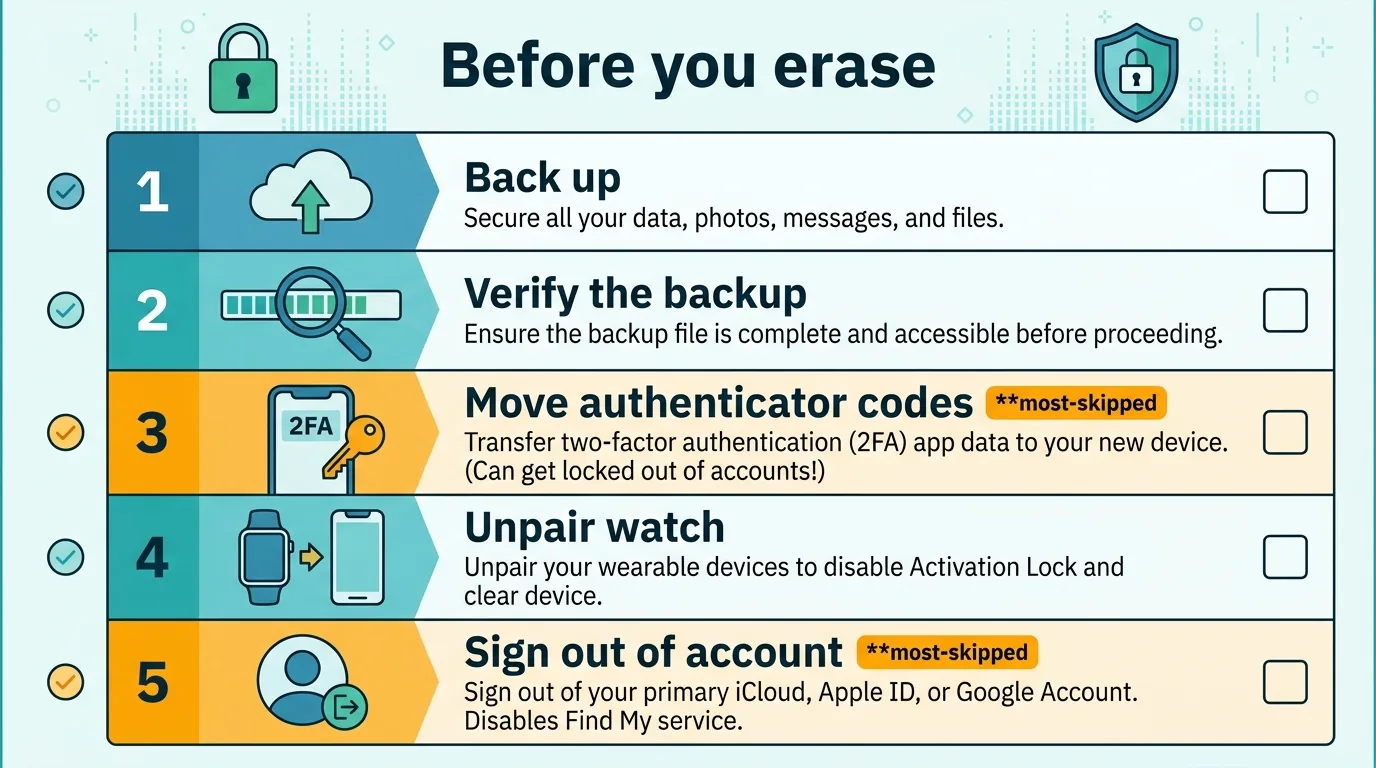
Before You Reset: The Five-Step Pre-Flight
Do these in order. Steps 3 and 4 are the ones people skip.
- Back up. Either iCloud (Settings → your name → iCloud → iCloud Backup → Back Up Now) or a computer. A computer backup is faster, free of storage limits, and — if you tick "Encrypt local backup" — is the only kind that preserves saved passwords, Health data, HomeKit configuration, and Wi-Fi networks. An unencrypted computer backup silently drops all of that.
- Verify the backup exists. Check the timestamp. A backup you assumed ran and didn't is the most common cause of genuine data loss here.
- Transfer or deregister two-factor authenticator codes. Authenticator apps that store seeds locally and aren't included in backups will leave you locked out of your own accounts after the reset. Move them to the new device or generate fresh recovery codes first. This is the failure people post about most often and the one guides mention least.
- Unpair your Apple Watch if you have one. Unpairing automatically creates a Watch backup and, critically, removes the Activation Lock on the Watch.
- Sign out of your Apple Account. Settings → your name → scroll down → Sign Out. This is the step that disables Activation Lock. Doing it after the erase is impossible.
Method 1 — Reset From the Phone Itself
Use this when the phone works and you know the passcode. Path names have been stable across recent iOS versions, including iOS 26 and the iOS 27 release announced at WWDC 2026:
- Settings → General → Transfer or Reset iPhone
- Tap Erase All Content and Settings
- Review the summary screen, tap Continue
- Enter your passcode, then your Apple Account password when prompted — this is the sign-out confirmation
- Wait. The device restarts to the "Hello" setup screen
Note the option immediately above it: Reset (singular) offers narrower operations — reset network settings, reset keyboard dictionary, reset home screen layout, reset location and privacy. If your problem is Wi-Fi or Bluetooth misbehaving, "Reset Network Settings" solves it without destroying anything else. A surprising share of people who factory reset did not need to.
Method 2 — Reset via Computer
Use this when the phone is disabled, stuck, forgotten-passcode, or won't boot normally.
- Connect by cable. On modern macOS the device appears in the Finder sidebar; on Windows and older macOS, in Apple Devices or iTunes.
- If you know the passcode and the phone boots: choose Restore iPhone. This erases and installs a clean current iOS.
- If the phone is locked or unresponsive: put it in Recovery Mode first. On iPhone 8 and later — press and release Volume Up, press and release Volume Down, then press and hold the Side button until the recovery cable icon appears. Do not release at the Apple logo; that is the most common mistake and it just reboots the phone normally.
- Choose Restore, not Update, when the dialog appears.
Activation Lock: The Trap That Ruins Resold Phones
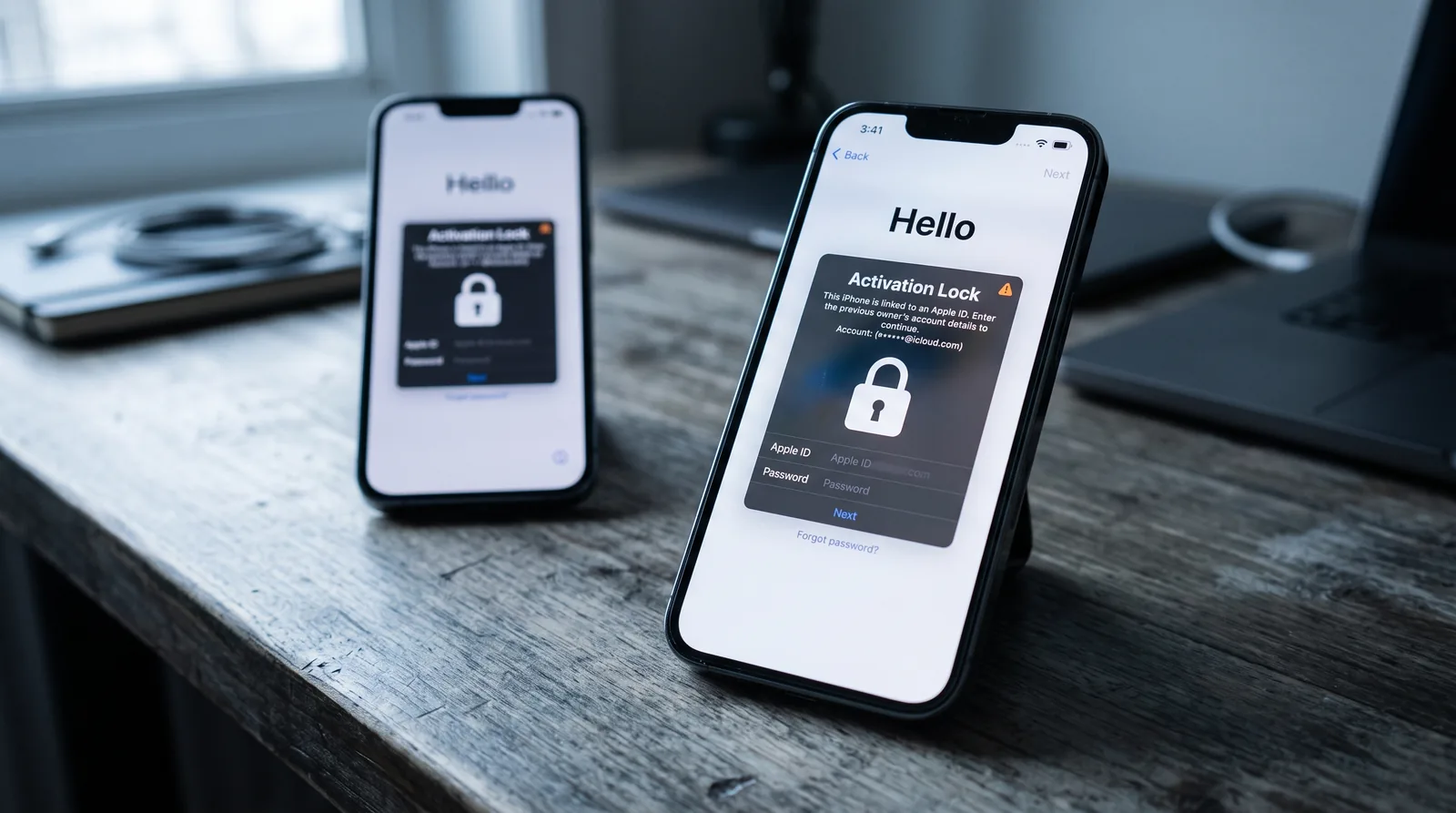
Activation Lock is anti-theft. When Find My is enabled, the device's identifier is bound to your Apple Account on Apple's servers. After any erase — including a full restore from a computer, including DFU mode — the device demands the original account credentials at setup before it will activate.
What this means in practice:
- Erasing does not clear it. No reset method, no cable, no third-party tool removes Activation Lock. Services advertising otherwise are selling something that does not work, or worse.
- A locked phone is worth roughly its scrap value. Threads on r/applehelp follow a depressingly consistent script: someone buys a used iPhone, the seller vanishes, the phone is unusable. The recurring advice is sound — never complete a used-iPhone purchase until you have watched the seller wipe it and seen it boot to the "Hello" screen without demanding an account.
- Removing it remotely is possible if you still have account access. Sign in at iCloud.com → Find Devices → select the device → Remove This Device. This works even after the phone has been erased and handed over, which is the fix for the "I forgot to sign out" case.
- If you have lost account access entirely, only Apple can help, and only with an original proof of purchase naming you. There is no other route.
What a Reset Does Not Remove
| Item | Removed by factory reset? |
|---|---|
| Photos, messages, apps, local files | Yes |
| Passcode and biometrics | Yes |
| Activation Lock | No — sign out of Apple Account first |
| iCloud data (photos, notes, backups) | No — that lives on Apple’s servers, not the phone |
| Carrier lock / network lock | No — carrier controls this, unrelated to reset |
| eSIM | Optional — the erase dialog asks; deleting it may require the carrier to reissue |
| MDM enrolment on a managed device | No — reappears at setup; the organisation must release it |
| Apple Watch pairing | Partially — unpair the Watch separately first |
The eSIM line deserves attention. On the erase confirmation screen you are asked whether to keep or delete the eSIM. If you are keeping the phone, keep it. If you are selling or trading in, delete it — but be aware that some carriers charge or require a store visit to reissue an eSIM profile, so check before you tap.
When a Reset Is Actually the Wrong Fix
Factory reset is the internet's default advice for any iPhone problem, and it is frequently the wrong tool:
- Battery draining fast — usually a specific app's background activity or a degraded battery. Check Settings → Battery for the culprit and Battery Health for capacity. A reset that restores the same backup restores the same problem.
- Storage full — offload unused apps and clear the Photos "Recently Deleted" album. A reset followed by a restore puts everything back.
- Overheating — commonly a runaway app or an ongoing iCloud sync. Wait for indexing to finish before concluding anything.
- Wi-Fi or Bluetooth flakiness — Reset Network Settings, not a full erase.
- Phone in a boot loop after an update — a computer restore is the right move, but try Update before Restore; it can repair the OS without wiping data.
A useful framing: restoring from a backup restores your problem along with your data. A reset only genuinely helps when you intend to set the device up as new, or when you're handing it to someone else. For a similarly over-prescribed piece of folk advice, see our breakdown of what actually works when a phone gets wet.
After the Reset
At the Hello screen you get three paths: restore from iCloud backup, restore from a computer backup, or set up as new. Quick Start — holding your old iPhone near the new one — transfers directly and is generally the smoothest option when both devices are in hand.
Two things to expect and not panic about: iCloud Photos will re-download in the background and can take hours to days on a large library, and apps reinstall from the App Store rather than from the backup, so a poor connection stretches the process considerably. The phone is usable throughout.
Frequently Asked Questions
Does a factory reset delete everything on an iPhone?
It deletes everything stored on the device — photos, apps, messages, settings and accounts. It does not delete anything stored in iCloud, and it does not remove Activation Lock, carrier locking, or mobile device management enrolment.
Will a factory reset remove Activation Lock?
No. Activation Lock survives every reset method including DFU restore. You must sign out of your Apple Account on the device before erasing, or remove the device from your account afterwards at iCloud.com under Find Devices.
How long does a factory reset take?
The erase itself usually finishes in a few minutes, because the phone destroys encryption keys rather than overwriting storage. Restoring a backup afterwards takes far longer, and photo and app downloads can continue in the background for hours.
Can I factory reset an iPhone without the passcode?
Yes, by connecting it to a computer and using Recovery Mode to restore it. However, you will still need the original Apple Account credentials at the setup screen because of Activation Lock, so this does not give you access to someone else's device.
Is my data recoverable after a factory reset?
Not practically. iPhones use cryptographic erasure — the data remains physically present but the encryption keys are destroyed, leaving it indistinguishable from random noise. Anything you want back must come from a backup.
Should I delete my eSIM when resetting?
Keep it if you are keeping the phone. Delete it if you are selling or trading the device in. Check with your carrier first, as some charge a fee or require a store visit to reissue an eSIM profile.